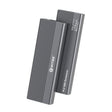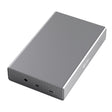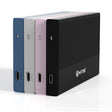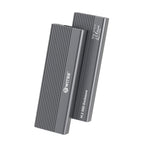



Remplacer le SSD de votre ordinateur portable est une mise à niveau courante : plus d'espace de stockage, un disque plus rapide, ou les deux. Pour l'installation elle-même, les guides pas à pas ne manquent pas, du fabricant de votre ordinateur portable aux grandes enseignes d'informatique. Là où la plupart de ces guides s'arrêtent, cet article prend le relais : que faire du disque que vous retirez ? La question mérite réflexion, car jeter un SSD ou un disque dur qui fonctionne est du gaspillage : avec le bon boîtier, il devient en quelques minutes un disque externe pleinement fonctionnel.
Avant tout : quel type de disque se trouvait dans votre ordinateur portable ?
Un ordinateur portable contient l'un de ces deux types de disques :
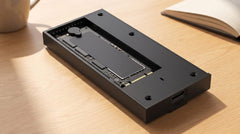
- SSD M.2 : une petite carte électronique étroite de quelques centimètres de long, fixée directement sur la carte mère.
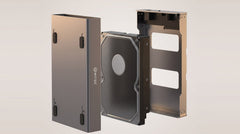
- Disque SATA de 2,5 pouces : un boîtier rectangulaire, à peu près de la taille d'un paquet de chewing-gums, sous forme de disque dur ou de SSD.
On ne trouve pas de disque de 3,5 pouces dans un ordinateur portable : ce format est réservé aux PC de bureau. Vous ne savez pas quel type contenait votre ordinateur portable ? Regardez le disque lui-même une fois retiré : une carte étroite est un M.2, un bloc rectangulaire avec des broches de connexion sur un côté est un 2,5 pouces. Vous avez encore un doute, ou vous voulez suivre le guide de choix complet en trois étapes (format, connecteur, vitesse) ? Quel boîtier me faut-il pour mon ancien disque dur ? peut vous y aider.
Comment se déroule en général le remplacement d'un SSD
La procédure exacte varie selon la marque et le modèle de l'ordinateur portable : il s'agit donc d'informations techniques générales, et non d'une étape propre à un produit Switss. Dans les grandes lignes, cela revient à ceci :
- Sauvegardez d'abord les fichiers que vous voulez conserver (l'étape la plus souvent oubliée, et celle que l'on regrette le plus si quelque chose tourne mal).
- Éteignez l'ordinateur portable, débranchez-le et, si sa batterie est amovible, retirez-la aussi.
- Ouvrez le panneau inférieur en suivant les instructions du fabricant et repérez le disque en place.
- Pour un SSD M.2 : retirez la vis de fixation et sortez doucement le SSD en le tirant légèrement en biais. Pour un disque de 2,5 pouces : dévissez le cadre de fixation et débranchez le câble.
- Installez le nouveau SSD, refermez l'ordinateur portable, et réinstallez le système d'exploitation ou clonez l'ancien disque sur le nouveau avant de le retirer.
Vous avez un doute sur une étape précise pour votre ordinateur portable ? Consultez le manuel du fabricant ou faites appel à un réparateur agréé : cet aperçu est volontairement général, car la procédure exacte varie selon le modèle.
Pourquoi ne pas simplement jeter l'ancien disque
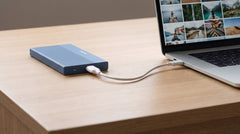
Le disque que vous venez de retirer de votre ordinateur portable fonctionne encore très bien dans la plupart des cas : il a été remplacé parce qu'il était devenu trop petit ou trop lent pour servir de disque principal, et non parce qu'il est en panne. Comme disque externe pour des photos, des documents ou une sauvegarde supplémentaire, il peut encore servir pendant des années. Vous évitez ainsi un nouvel achat, et un disque qui fonctionne n'a pas sa place dans les déchets électroniques.
Quel boîtier convient à votre ancien disque ?
Les prix et caractéristiques ci-dessous ont été vérifiés sur switss.nl le 24 juillet 2026. Consultez la page produit pour connaître le prix actuel.
| Boîtier SSD M.2 avec dissipateur thermique | Boîtier HDD/SSD 2,5 pouces | |
|---|---|---|
| Compatible avec | M.2 NVMe (PCIe) ou M.2 SATA (NGFF), formats 2230/2242/2260/2280 | HDD ou SSD SATA de 2,5 pouces, toutes marques |
| Connexion | USB-C 3.2 Gen 2, 10 Gbps | USB-C (USB 3.0, UASP) |
| Vitesse | jusqu'à 1050 Mo/s en lecture avec un NVMe ; jusqu'à environ 500 Mo/s avec un SATA | jusqu'à 450 Mo/s avec un SSD ; 100 à 180 Mo/s avec un HDD |
| Capacité max. | jusqu'à 8 To | jusqu'à 4 To |
| Montage | sans outils, se clipse en place | sans outils, se clipse en place |
| Matériau | aluminium avec dissipateur thermique | aluminium avec refroidissement passif |
| Couleurs | Space Grey | noir, argent, rose, bleu |
| Prix | 18,99 € | 12,49 € |
L'UASP (USB Attached SCSI Protocol) est un protocole de transfert qui fait passer les données par l'USB plus rapidement et plus efficacement que l'ancienne norme.
Les deux boîtiers sont livrés sans disque : votre propre SSD ou disque dur s'y clipse sans outils.
Étape par étape : du disque interne au disque externe
Si vous avez retiré un SSD M.2 de votre ordinateur portable, l'article Transformer un SSD M.2 en disque externe : étape par étape vous présente les étapes exactes : installer le SSD, brancher le câble et préparer le disque à l'utilisation. S'il s'agissait d'un disque de 2,5 pouces, Réutiliser un ancien disque 2,5 pouces d'ordinateur portable comme disque externe détaille les mêmes étapes pour ce format.
Et les fichiers qui s'y trouvent encore ?
Si vous comptez utiliser l'ancien disque vous-même, par exemple comme sauvegarde supplémentaire, il n'y a rien à effacer : les fichiers restent en place et sont accessibles dès que le disque est dans le boîtier. Si vous voulez donner, vendre ou mettre au rebut le disque, effacez d'abord soigneusement tous vos fichiers personnels ; les mettre simplement à la corbeille ne suffit pas, car des fichiers supprimés peuvent souvent encore être récupérés avec le bon logiciel. Vous ne savez pas si tout ce que vous voulez garder est déjà enregistré ailleurs ? L'article « Lire un ancien disque dur : comment consulter les fichiers d'un HDD ou d'un SSD démonté » explique comment vérifier le contenu avant de transférer ou d'effacer quoi que ce soit.
Si vous préférez transférer directement les fichiers de l'ancien disque vers votre nouvel ordinateur portable, sans abonnement cloud, l'article « Transférer vos fichiers vers votre nouvel ordinateur : la méthode simple, sans cloud » traite cette étape à part.
Questions fréquentes
Puis-je simplement utiliser mon ancien SSD dans un boîtier externe ?
Oui, tant que le format et le connecteur correspondent : un SSD M.2 au format 2230, 2242, 2260 ou 2280 va dans le boîtier M.2, un disque SATA de 2,5 pouces dans le boîtier 2,5 pouces. Le boîtier M.2 fonctionne avec pratiquement toutes les marques de SSD (testé notamment avec Crucial, Samsung, Kingston et Intel) ; le boîtier 2,5 pouces fonctionne avec toutes les marques de disques.
Dois-je effacer l'ancien disque avant de le réutiliser ?
Seulement si vous donnez, vendez ou mettez au rebut le disque. Si vous continuez à l'utiliser vous-même, rien ne doit être effacé.
L'ancien disque est-il aussi rapide dans un boîtier externe que dans mon ordinateur portable ?
Cela dépend du type de disque et de la connexion de votre ordinateur. Dans le boîtier, un SSD M.2 NVMe atteint jusqu'à 1050 Mo/s, un SSD SATA jusqu'à environ 500 Mo/s et un disque dur de 2,5 pouces 100 à 180 Mo/s, soit une vitesse comparable à celle du disque en interne, dans la limite de la connexion USB de votre ordinateur.
Puis-je utiliser plus tard un autre SSD dans le même boîtier ?
Oui. Les deux boîtiers sont livrés sans disque : vous pouvez donc remplacer plus tard l'ancien disque par un nouveau.
Quelle est la durée de la garantie sur le boîtier ?
3 ans de garantie constructeur, avec un service client néerlandais.
Prochaine étape
Vous savez maintenant quel type de disque est sorti de votre ordinateur portable ? Consultez les caractéristiques et le prix actuel : Switss Boîtier SSD M.2 avec dissipateur thermique pour un SSD M.2, ou Switss Boîtier externe HDD/SSD 2,5 pouces pour un disque SATA de 2,5 pouces.