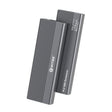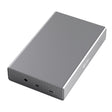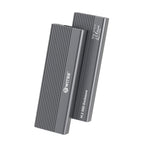



Vous avez un ancien disque dur qui traîne, provenant d'un ordinateur devenu lent, ou d'un ordinateur dont vous vous êtes séparé lors d'un déménagement ou d'un grand tri. Il contient sans doute des photos que vous ne voulez pas perdre. Avant de dépenser 12,49 € ou 29,99 € pour un boîtier, vous voulez naturellement savoir : est-ce que cela en vaut la peine ? Ou bien le disque a-t-il finalement cessé de fonctionner ?
Cet article vous aide à en juger grâce à quelques vérifications simples. Aucun outil n'est nécessaire, aucune connaissance technique n'est requise. Ce que cet article n'est pas : une garantie de résultat, ni un substitut à un service professionnel de récupération de données (une entreprise dont le métier est de retrouver des fichiers) si le disque est manifestement hors d'usage. Le disque semble valoir la peine ? L'article « Récupérer les photos de votre ancien ordinateur : le guide complet étape par étape » vous accompagne alors pour la suite. L'article « Lire un ancien disque dur : comment consulter les fichiers d'un HDD ou d'un SSD démonté » vous montre ensuite comment accéder réellement à vos fichiers.
La bonne nouvelle : le plus souvent, le disque fonctionne encore
Il s'agit d'une expérience générale issue du secteur de la réparation informatique, et non d'un chiffre mesuré par Switss ou issu d'une étude. Un ordinateur est généralement remplacé parce qu'il est devenu lent ou dépassé dans son ensemble, et non parce que le disque dur en particulier a lâché. Un démarrage lent, un système d'exploitation dépassé ou simplement le besoin d'un nouvel ordinateur portable : ce sont d'autres raisons qu'un disque défectueux.
En règle générale : votre ancien ordinateur a-t-il fonctionné normalement jusqu'au bout ? Les fichiers s'ouvraient comme d'habitude, il n'y avait pas de bruits étranges et vous n'avez reçu aucun message d'erreur concernant le disque. Il est alors peu probable que le disque dur lui-même ait été le problème. La suite de cet article vous aide à le vérifier plus en détail.
La question essentielle : comment votre ancien ordinateur a-t-il cessé de fonctionner ?
Avant de commander quoi que ce soit, il est utile de repenser à la façon dont cet ancien ordinateur est arrivé en fin de vie. Reconnaissez-vous votre situation dans l'une des deux catégories ci-dessous ?
Signes rassurants
- L'ordinateur est devenu progressivement plus lent avec le temps, sans que rien ne tombe réellement en panne.
- Vous avez remplacé l'ordinateur par un nouveau alors que l'ancien fonctionnait encore bien.
- Les fichiers et les photos s'ouvraient normalement jusqu'au bout.
Si cela vous correspond, il y a peu de raisons de penser que le disque dur en particulier était en cause.
Signes à prendre au sérieux
- À un moment donné, l'ordinateur ne démarrait plus du tout.
- Vous avez reçu des messages d'erreur concernant précisément le disque.
- L'ordinateur se bloquait régulièrement, peu avant de s'arrêter complètement.
- Vous avez entendu un cliquetis ou un bruit de frottement, peu avant que l'ordinateur ne lâche.
Vous reconnaissez l'un de ces signes ? Cela ne veut pas automatiquement dire que tout est perdu, mais il est sage d'ajuster vos attentes. Poursuivez votre lecture avec la liste de vérifications et l'explication sur les bruits ci-dessous.
Cinq points à vérifier avant de commander (sans rien ouvrir)
Prenez le disque en main et passez en revue ces cinq points. Vous n'avez rien à dévisser ni à démonter :
- Le disque est-il visiblement endommagé ? Pensez à des bosses, ou à une coque fissurée ou cassée.
- Le disque est-il déjà tombé, ou a-t-il été mouillé ? Même si c'était il y a longtemps, cela compte.
- Le disque sent-il le brûlé ? Une odeur de roussi est un signal d'alerte clair.
- Les broches du connecteur sont-elles droites ? Vérifiez qu'elles ne sont ni tordues ni abîmées.
- Vous souvenez-vous si le disque était très chaud, voire brûlant, pendant son utilisation ? Cela peut indiquer que quelque chose n'allait pas.
Aucun de ces cinq points n'est une certitude à lui seul. Tout semble en ordre ? Cela ne prouve pas que le disque fonctionne. Vous avez remarqué quelque chose d'anormal ? Cela ne prouve pas non plus qu'il ne fonctionne pas. Ensemble, les cinq points vous donnent toutefois une bonne idée du risque avant de commander.
Ce que signifie un cliquetis ou un bruit de frottement (et pourquoi c'est différent pour un SSD)
Un disque dur (HDD) contient des pièces mobiles : un plateau qui tourne et une tête de lecture qui se déplace au-dessus. Un cliquetis ou un bruit de frottement pendant l'utilisation peut donc signaler un problème mécanique.
Un SSD fonctionne autrement : il n'a aucune pièce mobile et ne fait donc aucun bruit, même lorsqu'il est en parfait état. Vous savez que votre disque est un SSD ? Le bruit ne vous apprend alors rien sur l'état du disque.
Vous ne savez pas si vous avez un HDD ou un SSD ? Ce n'est pas nécessaire non plus pour choisir votre boîtier : l'article « Quel boîtier me faut-il pour mon ancien disque dur ? » explique que les deux boîtiers fonctionnent aussi bien avec un HDD qu'avec un SSD.
Toujours un doute ? Pourquoi essayer comporte peu de risques
Vous avez fait toutes les vérifications ci-dessus et vous hésitez encore ? C'est compréhensible. À l'œil nu, et sans brancher le disque, vous ne pouvez jamais en être totalement certain. Heureusement, l'investissement reste limité : 12,49 € pour un boîtier 2,5 pouces (pour un disque d'ordinateur portable), ou 29,99 € pour un boîtier 3,5/2,5 pouces (pour un disque de PC de bureau). Prix vérifiés sur switss.nl le 24 juillet 2026.
En pratique, brancher le disque ne présente pas de risque : cela ne modifie rien de ce qui se trouve déjà dessus. Et si vous y renoncez ou changez d'avis : les deux boîtiers bénéficient de 3 ans de garantie fabricant et de 30 jours pour les retourner.
Quel boîtier convient à votre disque ?
Une fois que vous avez décidé d'essayer, le format de votre disque est la seule question qui reste :
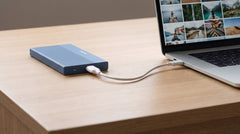
- 2,5 pouces : plat et compact, provenant généralement d'un ordinateur portable. Alimenté directement par le câble USB ; vous n'avez pas besoin d'un adaptateur séparé.
- 3,5 pouces : plus grand et plus lourd, provenant généralement d'un PC de bureau. Nécessite l'adaptateur secteur fourni.
Vous hésitez encore sur le format, la connexion ou la vitesse ? L'article « Quel boîtier me faut-il pour mon ancien disque dur ? » vous accompagne dans le guide de choix complet en trois étapes. Vous voulez comparer les deux boîtiers plus en détail, avec la vitesse et la capacité dans un seul tableau ? L'article « Boîtier pour disque dur : 2,5 ou 3,5 pouces, quel format vous faut-il ? » les présente pour vous.
Questions fréquentes
Puis-je savoir si mon ancien disque dur fonctionne encore sans le brancher d'abord ?
Pas avec une certitude absolue, mais vous pouvez vous en faire une bonne idée. Trois éléments réunis donnent une estimation raisonnable du risque : comment votre ancien ordinateur a cessé de fonctionner, si le disque est visiblement endommagé, et s'il faisait des cliquetis ou des bruits de frottement. Vous n'aurez de certitude qu'en branchant réellement le disque.
Mon ancien ordinateur a cessé de fonctionner : cela veut-il dire que le disque dur est lui aussi en panne ?
Pas forcément. Un ordinateur est souvent remplacé parce qu'il est devenu lent ou dépassé dans son ensemble, et non parce que le disque dur en particulier est tombé en panne. L'ordinateur a-t-il fonctionné normalement jusqu'au bout ? Les fichiers s'ouvraient, et il n'y avait ni bruits étranges ni messages d'erreur. Il est alors peu probable que le disque lui-même ait été le problème.
Que signifie un cliquetis ou un bip provenant de mon disque dur ?
Pour un disque dur (HDD), cela peut signaler un problème mécanique, car un HDD contient des pièces mobiles. Un SSD n'a aucune pièce mobile et ne fait aucun bruit : pour un SSD, le bruit ne vous apprend donc rien sur l'état du disque.
Est-ce que je perds mon argent si le disque ne fonctionne finalement pas ?
Non. Vous disposez de toute façon de 30 jours pour retourner le boîtier. Et si votre ancien disque ne fonctionne finalement plus ? Vous aurez tout de même chez vous un boîtier en état de marche pour un prochain disque.
Puis-je essayer sans risque de brancher un ancien disque dur ?
Oui. Le brancher ne modifie rien de ce qui se trouve sur le disque. D'après la liste de vérifications ci-dessus, vous avez de sérieux doutes sur son état physique (dommages visibles, odeur étrange, cliquetis) ? Envisagez alors un service professionnel de récupération de données plutôt que de continuer à essayer vous-même.
Quelle garantie ai-je sur le boîtier ?
3 ans de garantie fabricant, plus 30 jours pour le retourner.
Étape suivante
Vous avez fait les vérifications et vous voulez tenter votre chance ? Consultez les caractéristiques et le prix actuel : Switss Boîtier externe HDD/SSD 2,5 pouces (12,49 €) pour un disque d'ordinateur portable, ou Switss Boîtier HDD/SSD 3,5/2,5 pouces (29,99 €) pour un disque de PC de bureau. Prix vérifiés sur switss.nl le 24 juillet 2026.
Vous voulez passer directement de ce diagnostic à l'ensemble du parcours, de la vérification jusqu'à la récupération effective de vos photos ? L'article « Récupérer les photos de votre ancien ordinateur : le guide complet étape par étape » vous accompagne étape par étape.