


Vous avez acheté un nouvel ordinateur, et toutes les photos, tous les documents et fichiers de l'ancien doivent encore y être transférés ? Vous pouvez passer par le cloud, mais cela implique de créer un compte, d'attendre que tout soit envoyé en ligne, et parfois d'acheter de l'espace de stockage supplémentaire une fois votre limite gratuite atteinte. Il existe une voie plus directe : retirez le disque de votre ancien ordinateur, placez-le dans un boîtier externe, branchez ce boîtier sur votre nouvel ordinateur et faites simplement glisser les fichiers, comme avec une clé USB, mais avec le contenu de tout votre ancien ordinateur.
Pourquoi ne pas simplement utiliser le cloud ?
Une sauvegarde dans le cloud n'a rien de mauvais, mais pour un déménagement ponctuel d'un ancien ordinateur bien rempli vers un nouveau, elle présente quelques inconvénients pratiques : il vous faut un compte, une connexion internet stable pour tout envoyer en ligne (avec des milliers de photos et de vidéos, cela peut prendre longtemps), et au-delà d'un certain volume de stockage, la plupart des services de cloud exigent un abonnement. Un boîtier externe est un achat unique, fonctionne sans connexion internet ni compte, et vos fichiers restent entre vos mains au lieu de se trouver sur le serveur de quelqu'un d'autre.
Le principe en bref
Chaque ordinateur, portable ou de bureau, en contient un quelque part : un disque dur ou un SSD sur lequel se trouvent tous vos fichiers. Retirez-le et placez-le dans un boîtier externe avec une connexion USB : sur votre nouvel ordinateur, il se comporte alors comme un disque externe. Vous voyez immédiatement tous vos dossiers et fichiers, sans rien installer. Il vous suffit ensuite de faire glisser ce que vous voulez conserver.
Étape 1 : pouvez-vous retirer le disque de votre ancien ordinateur ?
- PC de bureau : presque toujours accessible. Vous ouvrez le panneau latéral du boîtier en retirant quelques vis, et le disque n'est maintenu que par quelques câbles.
- Ordinateur portable : souvent possible par une petite trappe située dessous, mais pas toujours. Certains ordinateurs portables récents et fins (et la plupart des MacBook de ces dernières années) ont un stockage soudé directement sur la carte mère. Celui-ci ne peut pas être retiré. Avant de commencer, vérifiez si votre modèle possède un disque amovible, par exemple en faisant une rapide recherche avec la référence exacte de votre ordinateur portable.
Si votre ancien ordinateur démarre encore normalement et que le disque est soudé, le transfert par le réseau ou par un câble de données reste possible (cela sort du cadre de cet article, qui se concentre sur la méthode avec un disque retiré de l'ordinateur).
Étape 2 : de quel type de disque s'agit-il ?
- 2,5 pouces : plat et compact, provient presque toujours d'un ordinateur portable.
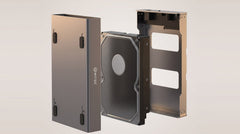
- 3,5 pouces : plus grand et plus lourd, provient presque toujours d'un PC de bureau.
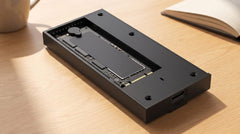
- M.2 : une petite carte électronique étroite plutôt qu'un disque rectangulaire, de plus en plus courante dans les ordinateurs portables récents et fins. Vous ne savez pas si votre ordinateur portable contient un SSD M.2 ? SSD M.2 NVMe ou SATA : quelle différence (et lequel vous faut-il) ? explique comment le reconnaître, et Transformer un SSD M.2 en disque externe : étape par étape présente la suite pour ce type de disque.
Vous hésitez encore sur le format, la connexion et la vitesse en général ? Quel boîtier me faut-il pour mon ancien disque dur ? vous guide pas à pas dans votre choix. Vous voulez consulter un guide d'achat plus détaillé des boîtiers SSD M.2 avant de choisir ? « Guide d'achat des boîtiers SSD M.2 : lequel convient à votre disque et à votre usage ? » présente les options. Vous voulez comparer plus en détail les deux formats, 2,5 pouces et 3,5 pouces, avec le prix, la vitesse et la capacité dans un seul tableau ? « Boîtier pour disque dur : 2,5 ou 3,5 pouces, quel format vous faut-il ? » les présente pour vous. La suite de cet article concerne un disque de 2,5 ou de 3,5 pouces.
Étape 3 : retirer le disque
- Éteignez l'ancien ordinateur et débranchez-le du secteur, même s'il s'agit d'un ordinateur portable.
- Ouvrez le boîtier avec un simple tournevis : sur un PC de bureau, il s'agit généralement du panneau latéral ; sur un ordinateur portable, généralement d'une petite trappe située dessous.
- Repérez le disque : un bloc métallique rectangulaire, vissé et relié par un ou deux câbles.
- Retirez les vis et débranchez le ou les câbles. Gardez les vis ensemble : vous n'en aurez pas besoin pour le nouvel ordinateur, mais bien si vous refermez un jour l'ancien.
Étape 4 : placer le disque dans le boîtier
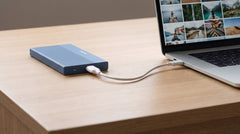
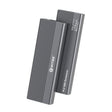
- Disque de 2,5 pouces : il se glisse sans outils dans le Switss Boîtier externe HDD/SSD 2,5 pouces : aucun outil nécessaire, il se clipse simplement en place.
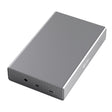
- Disque de 3,5 pouces : suivez le manuel fourni avec le Switss Boîtier HDD/SSD 3,5/2,5 pouces.
Branchez ensuite le câble fourni sur votre nouvel ordinateur. Si vous avez un disque de 3,5 pouces, branchez aussi l'adaptateur secteur fourni. Un disque de 2,5 pouces est alimenté directement par le câble USB.
Étape 5 : copier les fichiers
Patientez quelques secondes. Sous Windows, le disque apparaît dans l'Explorateur de fichiers ; sous macOS, sur le bureau et dans le Finder, exactement comme une clé USB. Copiez ensuite les dossiers que vous voulez conserver (Documents, Images, Vidéos, Bureau, Téléchargements) sur votre nouvel ordinateur. Avec beaucoup de fichiers, cela peut prendre un certain temps : le boîtier 2,5 pouces atteint jusqu'à 450 Mo/s avec un SSD et 100 à 180 Mo/s avec un disque dur ; le boîtier 3,5/2,5 pouces atteint jusqu'à environ 400 Mo/s en lecture avec un SSD. Un dossier de quelques milliers de photos est généralement copié en quelques minutes.
Le disque n'apparaît pas, ou votre ancien ordinateur ne démarre plus
Si le disque n'apparaît pas de lui-même, vérifiez dans Gestion des disques (Windows : clic droit sur le bouton Démarrer) ou dans Utilitaire de disque (macOS : recherche Spotlight). Si le disque figure dans la liste mais sans lettre, attribuez-lui une lettre manuellement (cela n'efface rien). Si une fenêtre vous demande d'initialiser le disque, cliquez sur Annuler s'il doit encore contenir des fichiers : l'initialisation efface tout le disque.
Votre ancien ordinateur ne démarrait déjà plus avant que vous ne commenciez ? Ce n'est généralement pas un problème : tant que le disque lui-même n'est pas endommagé, vous pouvez quand même le retirer et le lire via le boîtier sur votre nouvel ordinateur, même si le reste de l'ancien ordinateur ne fonctionne plus. Vous souhaitez un guide de dépannage plus détaillé pour lire un ancien disque retiré de son ordinateur ? « Lire un ancien disque dur : comment consulter les fichiers d'un HDD ou d'un SSD démonté » vous accompagne étape par étape.
Et si vous donnez ou revendez ensuite l'ancien ordinateur
Copier des fichiers n'efface rien sur l'ancien disque : ils y restent tout simplement. Si vous comptez donner, revendre ou rapporter l'ancien ordinateur, il est conseillé d'effacer d'abord le disque. Supprimer simplement les fichiers ne suffit pas : ils deviennent invisibles, mais pas forcément irrécupérables. Un effacement complet et sécurisé sort du cadre de cet article. Gardez-le en tout cas à l'esprit si vous laissez des fichiers personnels sur l'ancien disque.
Bonus : inutile de jeter le boîtier
Une fois tout transféré, vous pouvez continuer à utiliser le boîtier : avec l'ancien disque à l'intérieur comme sauvegarde supplémentaire, ou vide et prêt pour la prochaine fois que vous voudrez transférer des fichiers. Vous voulez en savoir plus sur ce que vous pouvez faire d'un ancien disque 2,5 pouces d'ordinateur portable utilisé comme disque externe ? Réutiliser un ancien disque 2,5 pouces d'ordinateur portable comme disque externe approfondit le sujet. Vous préférez simplement remplacer le SSD de votre ordinateur portable actuel plutôt que d'acheter un tout nouvel ordinateur ? « Remplacer le SSD de votre ordinateur portable : que faire de l'ancien disque ? » répond précisément à cette question.
Questions fréquentes
Cela fonctionne-t-il aussi si mon ancien ordinateur est un ordinateur portable ?
Oui, tant que le disque est amovible. Sur la plupart des ordinateurs portables, il est accessible par une petite trappe située dessous ; sur certains modèles récents et fins, le stockage est soudé et ce n'est pas possible.
Je n'ai aucune expérience technique : est-ce difficile ?
Il faut un tournevis et un peu de temps devant soi, mais aucune connaissance spécialisée : retirer des vis, débrancher le ou les câbles, placer le disque dans le boîtier, le brancher. Si vous avez un doute sur votre modèle d'ordinateur, cherchez avant de commencer comment accéder au disque sur ce modèle.
Est-ce que je risque d'effacer par erreur des fichiers de mon ancien ordinateur ?
Non. La copie elle-même n'efface rien : les fichiers restent sur l'ancien disque, même après avoir été copiés sur votre nouvel ordinateur.
Et si mon ancien ordinateur ne démarre plus ?
Vous pouvez généralement quand même retirer le disque et le lire via le boîtier sur votre nouvel ordinateur, tant que le disque lui-même n'est pas défectueux.
Le boîtier est-il livré avec un disque ?
Non. Les deux boîtiers sont livrés sans disque : vous y placez votre propre disque, celui de l'ancien ordinateur.
Quelle est la durée de la garantie ?
3 ans de garantie constructeur, avec un service client néerlandais.
Prochaine étape
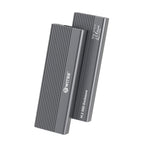
Vous savez maintenant quel type de disque contient votre ancien ordinateur ? Consultez les caractéristiques et le prix actuel : Switss Boîtier externe HDD/SSD 2,5 pouces pour un ordinateur portable, ou Switss Boîtier HDD/SSD 3,5/2,5 pouces pour un PC de bureau. Votre ordinateur portable (plus récent) contient un SSD M.2 plutôt qu'un disque de 2,5 pouces ? Découvrez le Switss Boîtier SSD M.2 avec dissipateur thermique (18,99 €, prix vérifié le 24 juillet 2026).
Hypothèses
- Les passages suivants relèvent de connaissances techniques générales et exactes sur Windows et macOS,
et ne proviennent pas d'une page produit Switss (celles-ci ne donnent que la FAQ générale sur
la préparation d'un disque neuf ou vide, une situation différente de celle d'un
disque existant qui contient déjà des fichiers) :
- le fait que certains ordinateurs portables récents et fins (et la plupart des MacBook de ces dernières années)
ont un stockage soudé directement sur la carte mère (dans « Étape 1 : pouvez-vous
retirer le disque de votre ancien ordinateur ? ») ;
- le comportement de l'Explorateur de fichiers sous Windows et du bureau et du Finder sous macOS dès qu'un disque
externe est branché (dans « Étape 5 : copier les fichiers ») ;
- la mention de Gestion des disques (Windows) et d'Utilitaire de disque (macOS) et le
fonctionnement de la fenêtre d'initialisation (dans « Le disque n'apparaît pas, ou votre ancien
ordinateur ne démarre plus ») ;
- la remarque selon laquelle supprimer simplement des fichiers les rend invisibles, mais pas forcément
irrécupérables (dans « Et si vous donnez ou revendez ensuite l'ancien ordinateur »).