


The short answer: if your second monitor stays black, it is almost never the hub's fault. In nine out of ten cases, your USB-C port simply does not support video. A hub only passes through an image if your laptop's USB-C port supports DisplayPort Alt Mode. Does it? Then the rest comes down to using the right port, cable and settings.
USB-C is a connector, not a promise
Every oval USB-C port looks the same from the outside, but under the hood they differ a lot. The same port can carry three things at once: data, power (Power Delivery) and video. That last part only works if the port supports DisplayPort Alt Mode — in short, the ability to send a video signal through the USB-C cable.
A hub does not generate that video signal itself. It only passes on what your laptop feeds it. If your port sends no video, the hub has nothing to pass through and the screen stays blank. The hub can still recognize your keyboard, mouse and charger just fine — which makes it extra confusing.
Check this first: does your port have DP Alt Mode?
This is step one, and it saves you most of the frustration. Here is how to find out.
Windows. Open Device Manager (right-click Start, choose Device Manager). Do you see "DisplayPort Alternate Mode" or "Thunderbolt" listed under the USB controllers? Then you are good to go. Not sure? Check your laptop brand's website for "DisplayPort over USB-C" or "DP Alt Mode" in the specifications. If it is not mentioned, your port probably cannot pass through video.
Mac. A Thunderbolt port always supports DP Alt Mode, so on a MacBook with Thunderbolt you are almost always fine. Not sure about an older model? Check via the Apple menu → About This Mac → More Info.
The classic issue: the wrong port
Do you have multiple USB-C ports? Then it is entirely possible that only one of them passes through video. Many laptops have a Thunderbolt port on one side (video works) and a regular USB-C port on the other (charging and data only). Connect the hub to the wrong one and the screen stays black even though nothing is actually wrong.
The simple fix: just try every USB-C port before concluding anything else. This solves the problem surprisingly often in one go.
DP Alt Mode checks out, and still no picture?
Then the cause is usually one of these four things.
- The cable. Not every USB-C cable can carry video. A cheap charging cable often only passes through power, not video. Use the cable that came with the hub, or one that supports USB 3.2 or Thunderbolt.
- The monitor's input. Sounds too simple, but is your monitor actually set to the right HDMI input? Checking with the source button on the monitor sometimes saves a lot of troubleshooting.
- Outdated drivers (Windows). An old driver for the USB-C controller can block video. Check Windows Update to see if any optional updates are available.
- Resolution set too high. Sometimes the combination of monitor and hub cannot handle the resolution that is set. Lower it temporarily through your display settings and see if the picture comes back.
What if your laptop simply has no DP Alt Mode?
You can still use an external monitor, just by a different route.
A hub with a DisplayLink chip. Some hubs send the picture through regular USB data instead of DP Alt Mode. You install a small piece of software for this. It works, but asks a bit more from your laptop and is less suited to heavy use or video.
Your laptop's own HDMI port. Does your laptop already have an HDMI output? Use that for the monitor, and use the hub for your extra USB ports, card reader and ethernet. The best of both worlds, without the hassle.
Which hub should you choose for a reliable monitor connection?
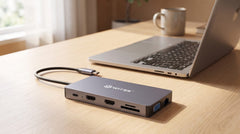
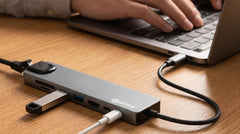
If your port has DP Alt Mode, a good hub is all you need. The Switss® 8-in-1 USB-C hub gives you 4K HDMI, gigabit ethernet, 65W Power Delivery, an SD and microSD card reader and two USB 3.0 ports. A great, complete choice for a fixed workspace or working from home.
Want two monitors at once on Windows, or simply as many connections as possible? Then the Switss 12-in-1 USB-C hub is your answer: two HDMI outputs plus VGA, gigabit ethernet, 100W Power Delivery, a card reader and audio. One device for your entire desk.
In short
A second monitor through a USB-C hub works perfectly well, as long as your laptop's USB-C port supports DisplayPort Alt Mode. So always ask that question first. If the answer is yes, the rest is a breeze. Not sure which one to choose? Our Dutch customer service is happy to help, and you buy from Switss with a 3-year warranty and 30-day returns. Check out the 8-in-1 hub for one monitor, or the 12-in-1 hub if you want to drive two.
Frequently asked questions
My hub charges my laptop fine, but the screen stays black. How is that possible?
Charging and video are separate functions within USB-C. Your port can supply power (Power Delivery) without DisplayPort Alt Mode. Without DP Alt Mode there simply is no video signal to pass through.
Does a second monitor through a USB-C hub work on every laptop?
No. Only on laptops with a USB-C port that supports DisplayPort Alt Mode or Thunderbolt. Ports meant only for charging or data do not pass through video.
How do I know if my USB-C cable is suitable for video?
Use a cable that supports USB 3.2 or Thunderbolt 3/4, or the cable that came with the hub. Cheap charging cables often only pass through power, not video.
Does a hub like this also work on my tablet or phone?
Some Android devices with USB-C support DP Alt Mode, but this varies a lot by model. On iPhones and iPads, video usually runs through the official Apple adapter.
What do I do if my laptop has no DP Alt Mode?
Choose a hub with a DisplayLink chip that sends video through USB data, or use your laptop's own HDMI port and use the hub for your other connections.