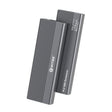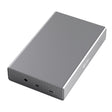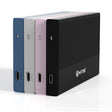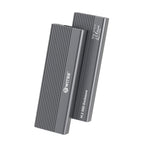



You want your photos, documents or work files automatically saved twice, without having to think about it yourself. A cloud subscription costs money every month and needs an internet connection; manually copying to a second drive works, until the one time you forget to do it. There's a third route: two SSDs that automatically mirror each other, set with a switch inside the enclosure: no software, no subscription.
What does "mirroring" actually mean?
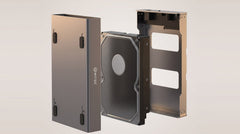
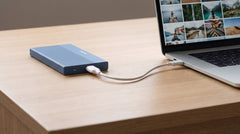
Mirroring (RAID 1) means that every file you save is written to two drives at the same time. On your computer it simply looks like one external drive, but what's on it is stored twice, spread across two physical SSDs in the same enclosure. If one SSD fails, your files stay intact on the other.
Why this works without software
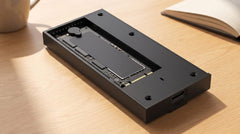
With software-based backup solutions (a sync program, a backup tool on your computer), something has to keep running: a scheduled task, a background process, an app you sometimes forget to open. With a dual-bay enclosure that has a RAID switch, that logic sits in the enclosure itself. You set the mode once with the switch inside the enclosure, next to the port cover, and from that point on mirroring works on every operating system: the enclosure splits the writing across both SSDs itself, without any program needing to be running anywhere.
How automatic mirroring works (RAID 1 explained)
In RAID 1 mode, the Switss RAID Dual-Bay presents itself to your computer as a single external drive. Drag a photo, document or video file onto it, and the enclosure writes that file to both SSDs at the same time. You don't notice any of it: it happens at the level of the enclosure itself. There is a trade-off: you're left with half the combined capacity as usable storage, because every byte is stored twice.
What mirroring does protect against, and what it doesn't
Mirroring is no miracle cure, and it's fairer to say that upfront than to let you discover it later:
- Protected against: one of the two SSDs failing. Your files simply remain accessible on the other one.
- Not protected against: accidentally deleting a file: it disappears from both SSDs at once, because mirroring copies every change, including a deletion. Theft, fire or water damage also affects both SSDs in the same enclosure just as badly as it would a single drive. For truly critical files, a separate, standalone copy in another location remains wise, in addition to the mirrored enclosure.
How to set up RAID 1, step by step
- First back up any existing files on the SSDs somewhere else: setting a mode reinitialises both SSDs and any existing data is lost.
- Open the enclosure and set the switch inside, next to the port cover, to RAID 1 (the diagram is in the included manual).
- Connect the enclosure to power: via the USB-C cable to your computer, or (for SSDs over 2 TB each) via a separate 5V/3A USB-C charger.
- Hold the confirmation button down for about 5 seconds until the four white LEDs flash.
- Check that the RAID 1 LED is lit. If it isn't, repeat steps 2 through 4.
- Connect the enclosure to your computer. Both SSDs now appear as a single drive; everything you save on it is automatically stored on both.
If you want to see all four RAID modes (PM, RAID 0, RAID 1, Copy) laid out side by side in more detail before you buy, the article "Buying a RAID enclosure: why two M.2 SSDs are smarter than one" sets them out. If you're only unsure about the technical difference between RAID 0 and RAID 1, RAID 0 vs RAID 1 Explained: Speed or Safety? explains that.
Which SSDs can you use, and how much storage
The enclosure works with M.2 NVMe and M.2 SATA SSDs, with an M-key or M+B-key connector, in the 2230, 2242, 2260 and 2280 form factors (any brand, any capacity). Without external power, the enclosure supports SSDs up to 2× 2 TB; with a 5V/3A USB-C charger that goes up to 2× 8 TB. In RAID 1 mode, you're left with half of that as usable storage, because the other half is the mirror.
Speed: what can you expect
The enclosure connects via USB-C 3.2 Gen 2x2, up to 20 Gbps. The product page doesn't list a separate transfer speed in MB/s specifically for RAID 1: that depends on your SSDs, the chosen mode and your computer's USB port. If you want to know how Gbps relates to MB/s and which connection is actually faster, that's covered in Thunderbolt 4 vs USB4 vs USB 3.2: Speeds Compared.
Frequently asked questions
Is automatic mirroring the same as a cloud backup?
No. With mirroring, your files sit on two physical SSDs in the same enclosure, with no internet connection or subscription needed. A cloud backup stores files on an external server, which does protect you against theft or damage to your own equipment. The two complement each other; they don't replace one another.
What happens if I accidentally delete a file?
That file disappears from both SSDs at once, because mirroring copies every change, including a deletion. Mirroring protects against drive failure, not against a wrong click of the mouse.
Do I need software for this?
No. You set the mode with the switch inside the enclosure and the confirmation button. Once set, mirroring works on every operating system without any extra installation.
Do I lose files if I switch to a different mode?
Yes. Switching modes reinitialises both SSDs. So back up existing files to another drive first.
How much warranty do I get?
3-year manufacturer's warranty, with Dutch customer service.
Next step
Want your files automatically saved twice, without software or a cloud subscription? Check the specifications and current price on the product page: Switss RAID Dual-Bay M.2 SSD Enclosure. If you only have one SSD and automatic backup isn't a priority, check out the simpler and cheaper M.2 SSD Enclosure with Heatsink.