

You've got a loose hard drive or SSD lying around (left over from an old laptop or desktop, or rediscovered in a drawer) and you want to know what's on it before deciding what to do with it. This article walks step by step through how to actually connect that drive and view the files.
First things first: what type of drive do you have?
You can identify a loose drive in a few seconds:
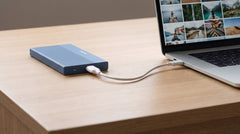
- 2.5-inch: flat and compact, usually from a laptop. Powered directly through the USB cable itself, no separate adapter needed.
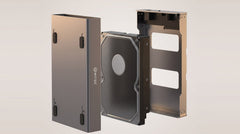
- 3.5-inch: larger and heavier, usually from a desktop PC. Needs a separate power adapter.
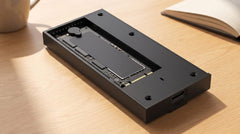
Not sure whether your drive is a regular SATA drive or an M.2 SSD (a narrow circuit board rather than a rectangular enclosure), or would you rather work through the full three-step selection guide (size, connection, speed)? Read Which enclosure do I need for my old hard drive? first. This article assumes you already know it's a 2.5-inch or 3.5-inch drive, and focuses purely on the question: how do I actually connect it right now.
What you need
- An external enclosure that matches the size of your drive (2.5-inch or 3.5-inch)
- The included cable
- For a 3.5-inch drive: the included power adapter
- A computer with a free USB port
Step by step: fitting and connecting the drive
- Open the enclosure. With the 2.5-inch enclosure, the drive slides in tool-free; for the 3.5"/2.5" enclosure, follow the included manual.
- Fit your drive and close the enclosure.
- Connect the included cable to the enclosure and to your computer.
- For a 3.5-inch drive, also connect the included power adapter. A 2.5-inch drive gets its power directly through the USB cable.
- Wait a few seconds. On Windows the drive appears in File Explorer; on macOS on the desktop and in Finder.
The drive doesn't appear: what now?
This is the point where people sometimes take a wrong step, so read this before clicking any further. A drive with existing files on it should appear automatically. If it doesn't:
- Windows: open Disk Management (right-click the Start button → Disk Management). Do you see your drive listed, but without a letter? Right-click the volume and choose "Change Drive Letter and Paths": that's safe and doesn't erase anything. If you instead get a pop-up asking you to initialize the disk, click Cancel if it should already have files on it: initializing wipes the entire drive and is only meant for a new, empty disk.
- macOS: open Disk Utility (Spotlight → "Disk Utility"). If the volume is visible but not mounted, select it and click "Mount".
If your drive came from a Windows PC (NTFS format) and you're now reading it on a Mac, you can usually view and copy the files, but you can't write back to the drive without extra steps. macOS supports NTFS read-only out of the box, not for writing.
The drive makes noise, or does nothing at all
A clicking or grinding noise from a hard drive (an SSD has no moving parts, so it makes no sound) can point to a mechanical problem. In that case, don't keep repeatedly trying to connect and copy: that increases the risk of further damage to the drive. For important data, consider a specialised data recovery service rather than continuing to try it yourself.
Securing your files as soon as you can
As soon as the drive is readable, copy the important folders (Documents, Pictures, Videos) straight to another drive or your computer. An old drive that's spinning again for the first time in years is not the place to leave as your only copy for the long term.
Which enclosure suits which type of drive
- 2.5-inch laptop drive (HDD or SSD): the Switss 2.5" HDD/SSD enclosure (compact, powered directly through USB, up to 4 TB, €12,49).
- 3.5-inch desktop drive: the Switss 3.5"/2.5" HDD/SSD enclosure (works with both sizes, includes a power adapter, up to 20 TB, €29,99).
Want to see the two options compared in more detail, with price, speed and capacity in one table? The article "Hard drive enclosure: 2.5-inch or 3.5-inch, what size do you need?" lays them out for you.
Frequently asked questions
Will I accidentally erase my files by connecting the drive?
No, not automatically. The drive is only erased if you actively choose "Initialize Disk" in Windows (or a similar formatting action). Simply connecting and viewing a drive with existing files on it is safe.
Does an old Windows drive also work on a Mac?
You can view and copy the files, but you can't write back to it without extra steps: macOS reads NTFS drives out of the box, but writing isn't supported by default.
Can I also use the drive on a games console?
The Switss enclosures work over USB, which also makes them usable on a PlayStation 4 (games and media) or PlayStation 5 and Xbox (media). Check the FAQ on the product page for the exact possibilities per console.
Does the enclosure come with a drive?
No. Both enclosures are supplied without a drive: you fit your own 2.5-inch or 3.5-inch drive.
How much warranty do I get?
2-year manufacturer's warranty, with Dutch customer service.
Next step
Do you now know which type of drive you have? Check the specifications and current price: Switss 2.5" HDD/SSD enclosure for a laptop drive, or Switss 3.5"/2.5" HDD/SSD enclosure for a desktop drive or if you want to be able to use both sizes. Still unsure about the type of drive or the connection? Work through the full selection guide in Which enclosure do I need for my old hard drive?