


The short answer: if you want a stable internet connection on a laptop without an ethernet port, plug in a USB-C hub with an RJ45 connector. You get real gigabit ethernet back (up to 1000 Mbps): no wifi spikes, no dropped connections and lower latency. And it works right away, without extra software on macOS or Windows.
Wifi is convenient, but working from home quickly reveals its weak spots. A video call that stutters the moment someone else starts streaming. A large upload that stalls halfway through. A VPN that disconnects for no clear reason. In those moments, a cable is simply more pleasant. The only problem: modern, thin laptops dropped the ethernet port a long time ago.
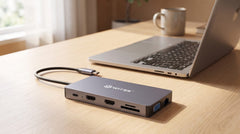
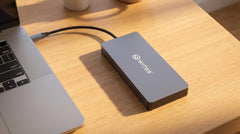
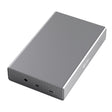
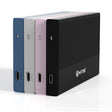
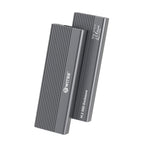
That's where a hub comes in. With the Switss® 8-in-1 USB-C hub you bring that wired network connection back (along with a display, power and extra ports) through a single cable to your laptop.
Why wired is more stable than wifi
Speed is only part of the story. The real advantage of ethernet is how predictable it is. A cable shares its space with no one: what goes in comes out the other end unchanged.
- Lower latency. On your local network, ethernet often sits under 1 ms, while wifi ranges between 5 and 15 ms. You notice this in video calls and remote desktop sessions.
- No interference. Wifi competes for the same spectrum as your neighbours, your microwave and your Bluetooth headphones. Ethernet is physically separate from all that.
- Reliable. No drops from your laptop switching between access points or hopping wifi channels. Handy when you work with a VPN or sync large files.
Gigabit ethernet stands for up to 1000 Mbps (1 Gbps). In practice, your internet plan is often the limiting factor: a 500 Mbps fibre line really does reach that speed over the cable, while wifi drops off noticeably at a distance or through walls.
How do you connect ethernet via a USB-C hub?
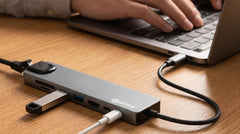
Simpler than it sounds. Inside the hub sits a small chip that translates USB data to ethernet and back. You do three things: plug the hub into your laptop's USB-C port, plug the network cable into the RJ45 connector, and plug the other end of that cable into your router or wall socket.
On macOS and Windows 10/11, the hub shows up automatically as a network adapter, with nothing to install. Truly plug-and-play. Wondering if it fits your laptop? Virtually every laptop with a USB-C port works with this, and you don't need to touch any settings.
One thing to watch for: not every hub delivers real gigabit. Cheaper models cap out at 100 Mbps (fast ethernet), ten times slower. You'll notice this as soon as you move large files within your own network. The Switss 8-in-1 and 12-in-1 hubs do support the full 1000 Mbps.
Everything in one cable: the Switss 8-in-1 hub
The 8-in-1 does more than just internet. It combines that wired network connection with the ports you use every day:
- Gigabit ethernet (RJ45) up to 1000 Mbps, plug-and-play
- 4K HDMI for an external display in 4K at 60 Hz
- 65W Power Delivery so your laptop charges through the same hub
- 2x USB 3.0 for a mouse, keyboard, USB stick or hard drive
- SD and microSD card reader for your camera or drone
You arrive in the morning, plug in one USB-C cable, and your whole workspace is ready: internet, display, power and peripherals all at once. That's the whole idea behind a hub: one connection, everything attached.
A more extensive workspace? The 12-in-1
Working with multiple displays or a heavier laptop? The Switss 12-in-1 USB-C hub offers the same gigabit ethernet, with extra options on top:
- 2x HDMI + VGA for up to three external displays on Windows
- 100W Power Delivery for heavier laptops and a MacBook Pro
- Audio connector to plug your headset straight into the hub
- Extra USB ports for a full desk setup
For a permanent office workspace where the laptop is your only computer, this is the complete answer.
Extra speed to your NAS or home server
If you have a NAS (a home server for files, backups and media), ethernet makes a real difference. Over wifi you rarely get more than 50 to 80 MB/s there. Over gigabit ethernet that's typically 80 to 110 MB/s in practice: two to three times faster. You'll notice it right away when syncing large photo archives, video files or a full backup.
Ethernet via the hub, or wifi after all?
Both have their place. This table helps you choose per situation.
| Situation | Ethernet via hub | Wifi |
|---|---|---|
| Video calls (Teams, Zoom) | Stable and low latency | Inconsistent on a busy network |
| Uploading or downloading large files | Consistently at maximum speed | Fast close to the router, then erratic |
| VPN connection | Reliable, no drops | Sometimes stutters during tunnelling |
| On the couch or in the garden | Not practical | The only option |
| NAS or local file server | Strongly recommended | Possible, but slower |
Conclusion
Gigabit ethernet via USB-C is the fastest way to bring calm and speed back to a modern, thin laptop. With the Switss 8-in-1 USB-C hub you get internet, an external display, power and extra ports from a single plug, no driver hassle, straight to work. Want a more extensive permanent setup with multiple displays? Take a look at the Switss 12-in-1 USB-C hub. Not sure if it fits your laptop? Our Dutch customer service is happy to think along, and you get a 3-year warranty and 30 days to return it.
Frequently asked questions
Do I need drivers for ethernet via a Switss hub?
Not on macOS or Windows 10/11. The hub shows up automatically as a network adapter and works right away. Only on older systems like Windows 7 or 8 might a driver be needed.
What's the difference between 100 Mbps and gigabit ethernet?
100 Mbps (fast ethernet) is ten times slower than gigabit (1000 Mbps). You'll notice it with large files within your network and with a fast internet plan. The Switss hubs deliver real gigabit.
Does ethernet via a USB-C hub also work on a MacBook?
Yes. On every MacBook with a USB-C or Thunderbolt port, the ethernet adapter works plug-and-play, without extra software.
Can I have ethernet and wifi active at the same time?
Yes. Windows and macOS then give ethernet priority as the default route. If you use a business network or VPN, check the behaviour if you notice anything unusual.
Does it matter which USB-C port I use?
Barely, for internet and USB data; virtually every USB-C port works. For HDMI video you need DisplayPort Alt Mode, and for full charging power a port that delivers enough current. Check your laptop's specifications for that.