


The short answer: you connect a 3.5-inch desktop drive to your laptop using an external enclosure that has its own power adapter. A drive that large needs more power than a USB port can deliver, so the included adapter powers the drive while the USB cable only handles the data. A smaller 2.5-inch drive doesn't need that adapter: it runs on USB power alone.
Why a 3.5-inch drive needs its own power plug
The difference comes down to power. A 3.5-inch hard drive, like the one you know from a desktop computer, draws around 1.5 to 2 amps at 12 volts on startup. A USB port simply doesn't deliver that: it supplies a maximum of 0.9 A at 5 V. If you connect the drive without extra power anyway, your laptop won't recognize it, or it will drop out halfway through a file.
An enclosure with mains power solves that neatly. The plug from the wall outlet powers the drive, and the USB cable handles the rest. For you, it feels like just plugging in and you're done: the enclosure manages the power supply in the background.
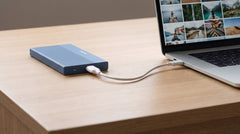
With a 2.5-inch drive (a laptop drive or a separate SATA SSD), this isn't an issue. It runs on 5 V and fits within the USB power budget. That's why you can use a compact enclosure without a plug for that.
Which enclosure fits your drive?
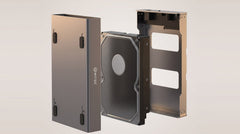
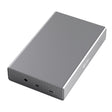
If you have a 3.5-inch drive, or want to be able to use both a large and a small drive with one enclosure, the Switss® 3.5/2.5-inch enclosure is the logical choice. It accepts both sizes, and the power adapter is already included in the box.
- Sizes: all SATA HDDs and SATA SSDs, both 2.5" and 3.5"
- Capacity: up to 20 TB
- Connection: USB-C with USB 3.0 and UASP (up to 5 Gbps)
- Power: power adapter included, works on 100–240 V
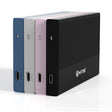
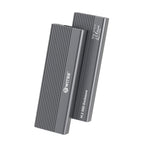
If you only have a smaller drive, from an old laptop or a separate SATA SSD, the Switss 2.5-inch enclosure is the lighter choice. Compact size, no plug needed, the same fast USB 3.0 UASP connection, up to 4 TB.
How fast is such an external drive?
Good to know: with an external drive, it's not the USB port that determines the speed, but the drive itself. A mechanical hard drive reads in practice around 100–250 MB/s. The USB 3.0 connection can handle much more (up to about 5 Gbps, or around 500 MB/s), so there's room to spare if you later put a faster SATA SSD in the same enclosure, which reaches up to around 500 MB/s.
The enclosure uses UASP, a more efficient way to send data over USB than the older method. In plain terms: less load on your computer and smoother transfers, especially noticeable with lots of small files. Windows 8 and later, macOS 10.8 and later, and most Linux versions support this without you needing to configure anything.
Which drives fit?
Almost every 3.5-inch desktop drive with a SATA connection fits, including well-known drives from Seagate, Western Digital and Toshiba. A few practical points:
- Whether the drive spins at 5400 or 7200 RPM doesn't matter for the enclosure.
- Both SMR and CMR drives work; SMR is a bit slower with lots of random writes.
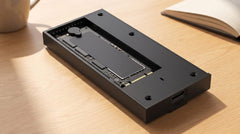
- Note: NVMe M.2 drives don't fit here. Those have a different connection and need a separate M.2 enclosure.
Connecting it step by step
- Insert the drive. Slide the drive into the enclosure along the SATA connection. Most models require no tools.
- Connect the power adapter. Plug the adapter into the enclosure and into the wall outlet.
- Connect to your laptop. Use the included USB-C cable. Does your laptop only have USB-A ports? A USB-C to USB-A cable or adapter works fine.
- Wait a moment. Windows or macOS recognizes the drive within 5 to 10 seconds.
- Format if needed. If the drive is new, choose NTFS for Windows only, or exFAT if you want to use it on both Windows and Mac.
3.5-inch or 2.5-inch enclosure?
| Feature | 3.5/2.5-inch enclosure | 2.5-inch enclosure |
|---|---|---|
| Drive sizes | 3.5" and 2.5" SATA | 2.5" SATA |
| Max. capacity | 20 TB | 4 TB |
| Power | Power adapter (included) | USB power |
| Connection | USB-C, USB 3.0 UASP | USB-C, USB 3.0 UASP |
| Enclosure size | Desktop | Compact |
Conclusion
Connecting a 3.5-inch desktop drive to your laptop is easy, as long as you choose an enclosure with an included power adapter. The Switss 3.5/2.5-inch enclosure takes drives up to 20 TB, works for both HDD and SATA SSD, and already has the power supply in the box. If you only have a smaller drive, the Switss 2.5-inch enclosure is the compact choice up to 4 TB. Still not sure? Our Dutch customer service is happy to help, and you buy with a 3-year warranty and 30 days return.
Frequently asked questions
Can I connect a 3.5-inch drive without a power adapter?
No. A 3.5-inch drive needs about 12 V and 1.5–2 A, and no USB port delivers that. Without an adapter, the drive won't start up, or it will drop out during use.
Does every SATA drive work in the enclosure?
Yes, every SATA HDD or SATA SSD in 2.5" or 3.5" size fits. Not NVMe M.2 drives: those have a different connection and need a separate M.2 enclosure.
My laptop only has USB-A. Does it still work?
Yes. Use a USB-C to USB-A cable or a small adapter. The enclosure then works exactly the same way.
How do I format a new drive?
Choose NTFS if you only use the drive on Windows, or exFAT if you want to use it on both Windows and Mac. Windows usually opens Disk Management automatically.
Can I use the adapter abroad too?
Yes, the included adapter works on 100–240 V. With the right plug adapter, you can also use the enclosure while traveling.